Connected to Nothing: Diagnosing the Tug-Aircraft Link Failure That Haunts Gate Operations

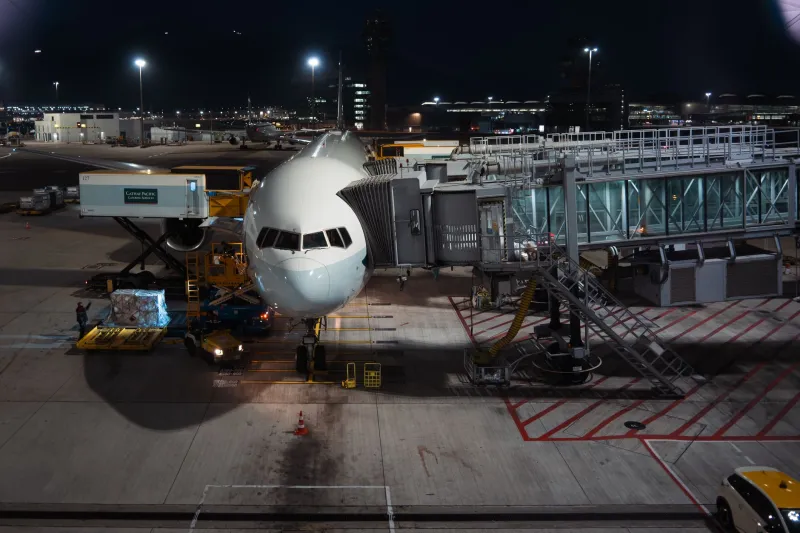
There is a particular frustration unique to the serious flight simmer: the moment when ground equipment performs its choreography flawlessly—driving across the ramp, positioning beneath the nose gear, stopping at precisely the right distance—and then does absolutely nothing. No connection. No tow bar animation. No movement. Just a tug sitting in front of your aircraft as though the two objects exist in entirely separate realities, which, in a very technical sense, they sometimes do.
This failure mode, colloquially known among experienced simmers as the phantom pushback, is not random. It follows patterns, has identifiable causes, and responds to methodical diagnosis. Understanding those causes requires looking simultaneously at simulation architecture, add-on compatibility, and real-world procedural logic that developers attempt to replicate—sometimes imperfectly.
Why the Connection Never Happens: The Core Mechanics
Before troubleshooting, it helps to understand what a successful tug-to-aircraft connection actually requires at the software level. Most ground handling add-ons—GSX Pro, FS2Crew, JarDesign Ground Handling Deluxe, and their counterparts—rely on a handshake between three data sources: the aircraft's defined contact points, the airport's parking spot geometry, and the add-on's own internal physics or animation engine.
When that handshake fails, the tug arrives but cannot latch. The add-on has successfully computed where the tug should be, but the attachment point it expects to find at the aircraft's nose gear either does not exist in the expected location, is defined with incorrect offset values, or is being blocked by a conflicting process in the simulation's ground physics layer.
This is not a single bug. It is a category of failure with distinct subtypes, each demanding a different resolution path.
Subtype One: Contact Point Misalignment
Every aircraft model in a modern flight simulator carries a configuration file that defines its physical contact points—the precise three-dimensional coordinates where the landing gear meets the ground, and where external equipment is permitted to interface. In Microsoft Flight Simulator 2020 and 2024, these are embedded in the aircraft's model.cfg or flight_model.cfg files. In X-Plane, equivalent data lives within the aircraft's .acf file.
When a third-party aircraft developer defines nose gear contact points that deviate from real-world dimensions—even by fractions of a meter—the pushback add-on may position its tug correctly relative to the parking spot but fail to align with the actual contact point the aircraft is advertising. The result is a tug that looks connected but is not, because the attachment logic requires spatial proximity within a defined tolerance threshold.
Resolution: Cross-reference the aircraft's nose gear contact point coordinates against published manufacturer dimensions. For MSFS users, tools such as the Aircraft Configuration Editor allow direct inspection of these values. Adjust the point.0 entry (typically the nose gear) to match real-world gear positioning. Always back up original files before modification.
Subtype Two: Parking Spot Definition Errors
Airport scenery developers define parking spots using coordinate data that instructs the simulation where aircraft should stop and, by extension, where ground equipment should approach. When a parking spot's heading value is incorrect—even by a few degrees—the tug's approach vector shifts enough to place it outside the connection tolerance window.
This is particularly common in community-developed freeware airports and in older payware that has not been updated to reflect simulator patches that altered ground vehicle pathfinding logic. Airports built for Prepar3D and ported to MSFS without revision are especially prone to this issue.
Resolution: Open the airport's apt.dat (X-Plane) or airport.bgl/scenery package in a compatible editor—WED for X-Plane, ADE or the MSFS SDK's scenery editor for Microsoft platforms. Inspect the parking spot heading for your gate. Compare against satellite imagery from Google Earth or AirNav.com to confirm real-world alignment. Correct heading discrepancies of more than two degrees.
Subtype Three: Add-On Conflicts and Injection Timing
Modern simulator ecosystems run multiple add-ons simultaneously, and ground handling tools are among the most injection-sensitive products in any simmer's library. When two add-ons both attempt to control ground vehicle behavior—for example, a standalone pushback utility running alongside a full ground services suite—they can produce a race condition in which each assumes the other has established the tow connection.
This conflict is common when simmers use a default pushback utility as a fallback while also running GSX Pro, or when an aircraft-specific ground handling script (common in some PMDG and Fenix aircraft packages) fires simultaneously with a third-party ground services tool.
Resolution: Audit your add-on load order and disable redundant ground handling tools before initiating pushback. In MSFS, the Add-on Linker tool allows selective loading per session. In X-Plane, review your plugin list in Plugin Admin and disable conflicting tools before departure.
Subtype Four: Physics Engine Suspension Conflicts
Some simulators temporarily suspend ground physics for parked aircraft to reduce processing load—a behavior that can interfere with the attachment handshake if it occurs at the precise moment a pushback add-on attempts to establish a tow link. This is more common on lower-specification hardware where the simulator aggressively manages physics threads.
Resolution: Increase the physics simulation rate in your simulator's settings if the option is available. In X-Plane, the rendering settings panel includes physics rate controls. In MSFS, ensuring your traffic and AI density settings are not overwhelming the physics thread can reduce the likelihood of this timing failure.
A Systematic Troubleshooting Flowchart
When facing a phantom pushback, work through the following sequence before drawing conclusions:
- Confirm the tug has fully stopped — Some add-ons require the vehicle to reach a complete stop before the connection prompt or automatic link triggers. Wait fifteen seconds after the tug positions itself.
- Check for dual pushback tool conflicts — Disable all ground handling add-ons except your primary tool and retry.
- Inspect the parking spot heading — Open your airport in its appropriate editor and verify alignment against real-world data.
- Examine aircraft contact point data — Compare nose gear coordinates to published specifications.
- Test with a different aircraft — If a default aircraft pushes back cleanly from the same spot, the issue is aircraft-specific. If the problem persists across all aircraft, the issue is environmental.
- Test at a different gate — Isolates whether the failure is spot-specific or airport-wide.
- Review add-on version compatibility — Confirm your ground handling tool supports the current simulator build. Check the developer's changelog and forums for known issues.
Restoring the Connection
The phantom pushback is not an unsolvable mystery. It is a systems problem—the product of misaligned data, conflicting software, or physics timing failures—and systems problems yield to methodical analysis. The simmers who resolve these failures consistently are those who resist the temptation to reinstall everything at once and instead isolate variables with discipline.
At VDG SimDock, we regard ground operations troubleshooting as a core simulation skill, not a peripheral annoyance. The gate environment is where every departure begins, and a tug that connects cleanly and pushes back precisely is as much a mark of a well-configured simulation as a perfectly executed ILS approach. Master the connection. Own the departure.